
AI Aim Assist - Call of Duty Guide
Installation & Configuration
1. Download the software from the my account page and follow the installation wizard to install the base application.
2. Watch the following video to see how to use the application.
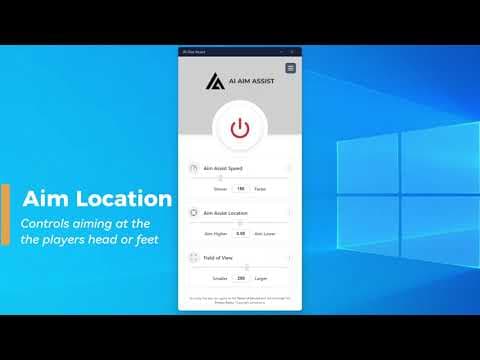 Watch the setup video
 In Game Settings
In order for the AI Aim Assist to work correctly, you must implement the changes below. This is to ensure Call of Duty does not consume all of your graphics cards power. Due to this, some graphical and frame rate changes may need to be applied. The goal is to reduce the amount of power the game is consuming from the graphics card to allow AI Aim Assist to run efficiently.
Custom Frame Limit
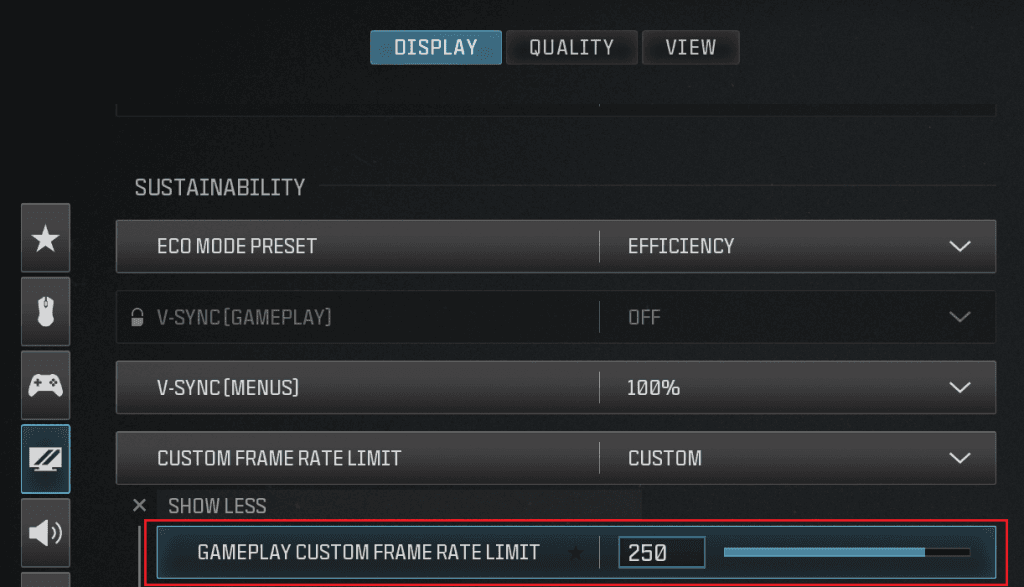
It is recommended to set the frame rate limit to between 100-150 depending on your graphics card specification. For Black Ops 7, 120 is recommended.
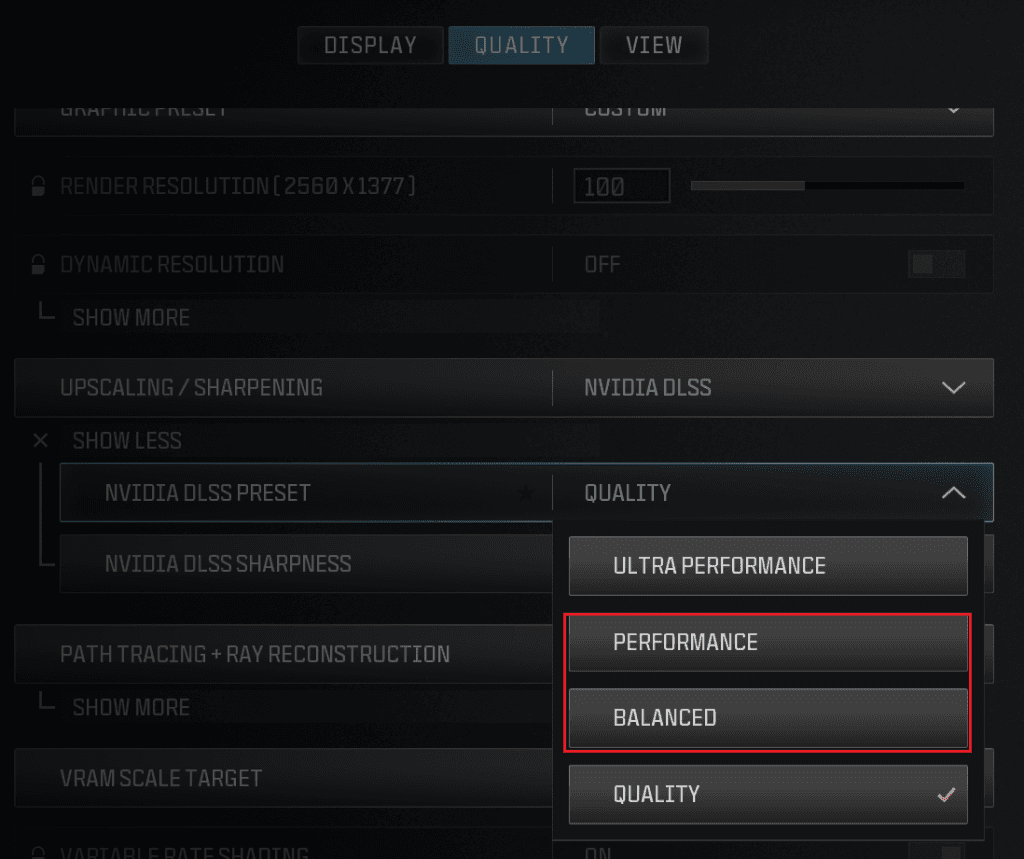
DLSS Preset
It is recommended that your DLSS preset is either set to balanced or performance, depending on your graphics card specification.
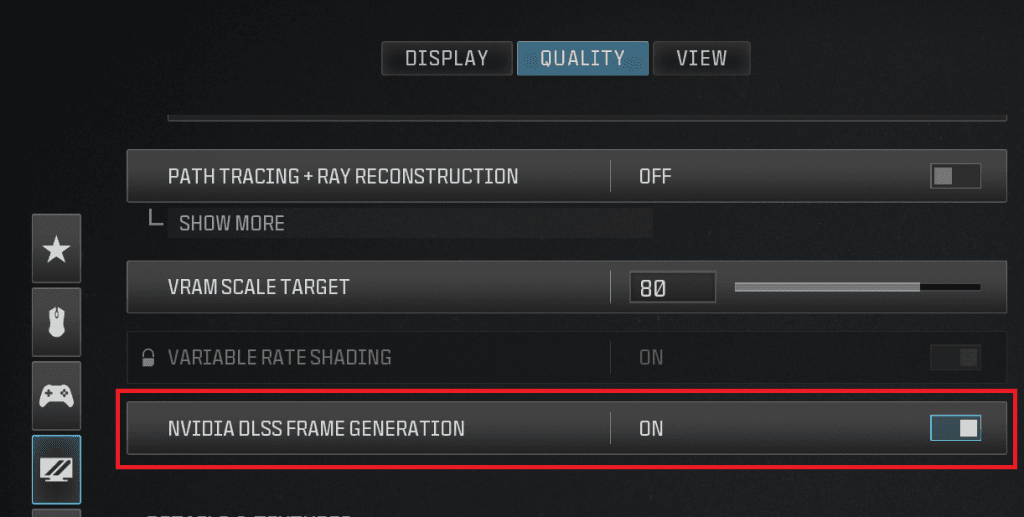
DLSS Frame Generation
If you have an RTX 40XX series graphics card, it is strongly recommended to enable DLSS Frame Generation.
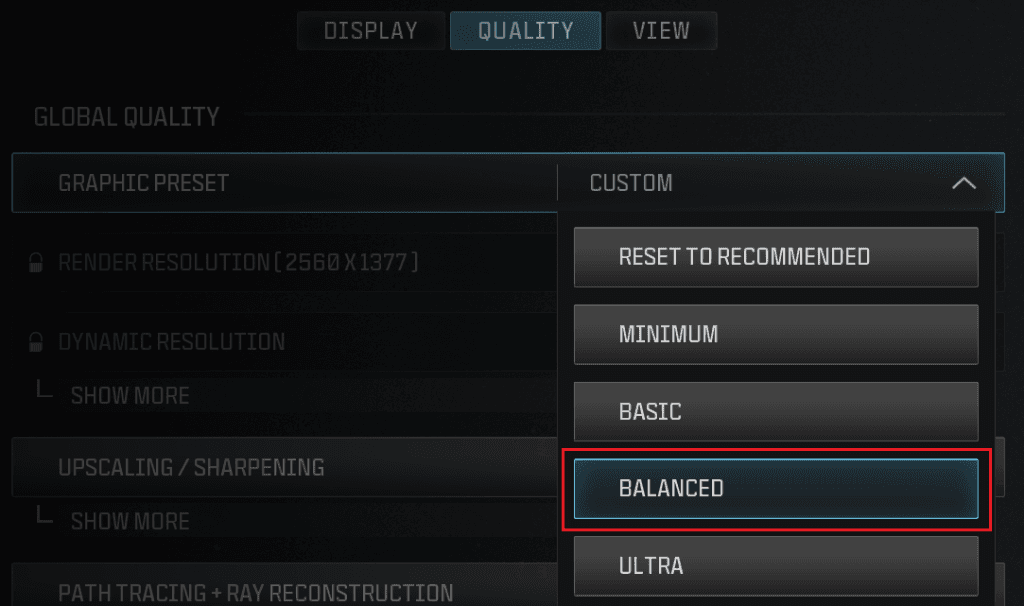
Graphics Preset
For optimal performance it is recommend that the Graphics Preset is configured to Balanced.
Display Mode
You must use Full screen Borderless or Windowed mode only. Another other display mode will not work.
Please find below and overview of all configurable settings in the application. Please note that when changes are made the configuration can be reloaded by pressing F4 on your keyboard for mouse edition and F12 on your keyboard for controller edition.
Aim Assist Speed
Aim Assist Speed relates to how fast your in game crosshair moves towards the enemy. Moving the slider in the application to the right increases the speed, moving it to the left decreases the speed. it is important to note the speed is also affected by your in game mouse sensitivity. In you play with a high in game mouse sensitivity, your Aim Assist speed may need to be lower to compensate for this, otherwise your aim may become unstable.
Aim Assist Location
Aim Assist Location relates to the position that the crosshair is placed in when a enemy is identified. By default the aim assist location is set to the enemy's head region. To alter the aim location, move the slider to the left in order to aim lower, or to the right to aim higher. As with all settings once the adjustment has been made, press F4 or F12 on your keyboard to reload the configuration.
Aim Assist Field of View
The field of view settings relates to the area in which the software is providing additional aim assist. The field of view overlay provides and onscreen look at the area being covered. The field of view slider in the application can be be moved to the right in order to increase the FOV, or moved to the left to decrease it. It is very important to note that increasing the size of the field of view may have an impact on system and the aim assist software performance.
We recommend weapon builds that reduce virtual recoil, this is make the AI tracking more stable. We also recommend using an optic that is clear and gives a large view such as slate reflector type optics.
It is not recommend to use iron sights or thermal scopes.
Troubleshooting
If the installation failed or did not fully complete, uninstall AI Aim Assist from add and remove programs and perform the install again. You can also press the repair button from the help screen of the application installed but will not start.
This can happen if your game graphics settings are too high, try reducing the graphics quality in the game's options and capping your framerate to 100 or lower.
When aiming down sight, if your aim moves erratically or uncontrollably try reducing your speed. The if the speed is set too high it can cause a bouncing effect where your aim overshoots the target and moves back.
If you find your aim is switching between identified enemy players, reduce the Aim Assist Field of View in the app. This means that the detection area is smaller and focuses your aim on the player that is more likely in the direction you are facing.